Management Console
Add credentials
Add Credentials to the project.
The application can access various APIs by performing GS2-Identifier authentication using the client ID and client secret information contained in the credentials.
Authentication is performed on a GS2-Identifier user basis. GS2-Identifier users have defined permissions to use GS2 services. This section describes how to add a user with access privileges for applications.
Create User
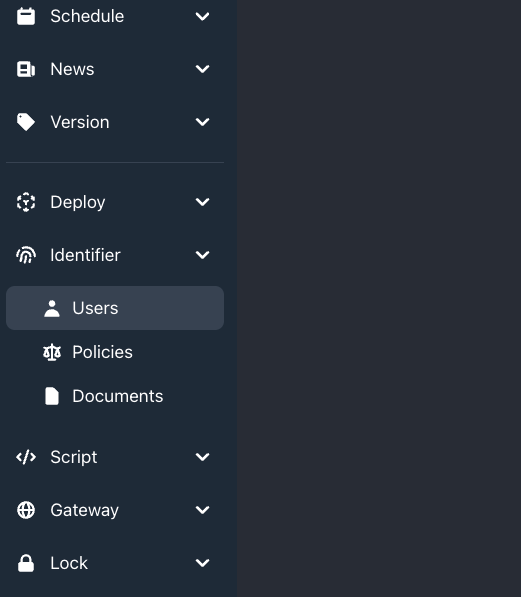
Select Identifier from the side menu of the Management Console and click Users.
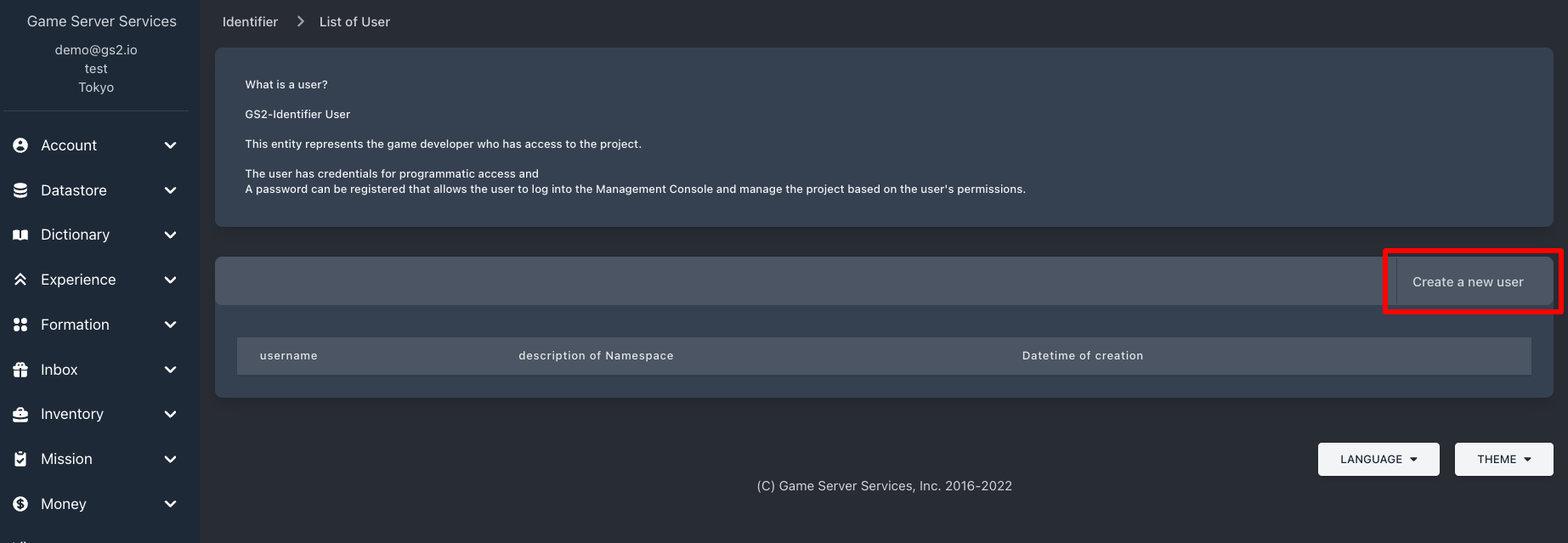
The “Identifier > User List” page will open. Select Create New User on the right.
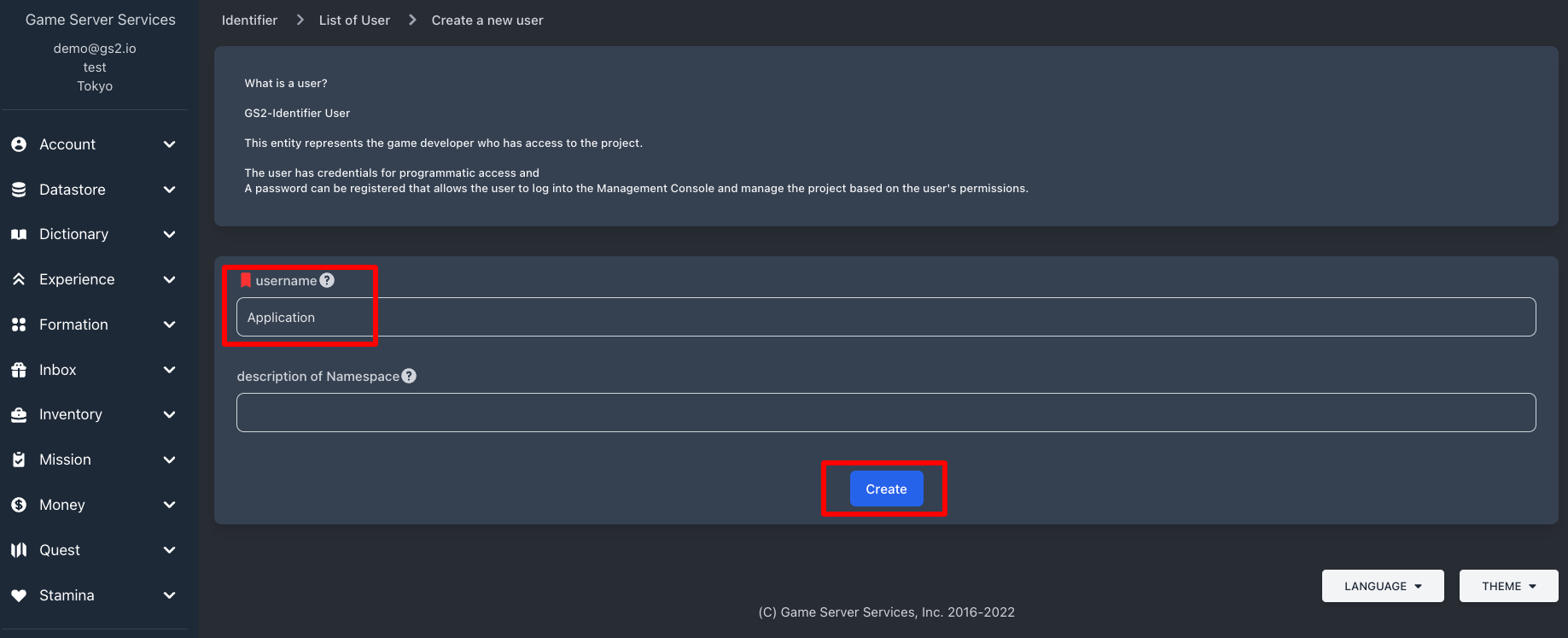
The “Identifier > User List > Create New User” page will open. Enter the user name and description fields as appropriate, and click Create. (e.g. User Name: Application, etc.)
Create Credential (API Key)
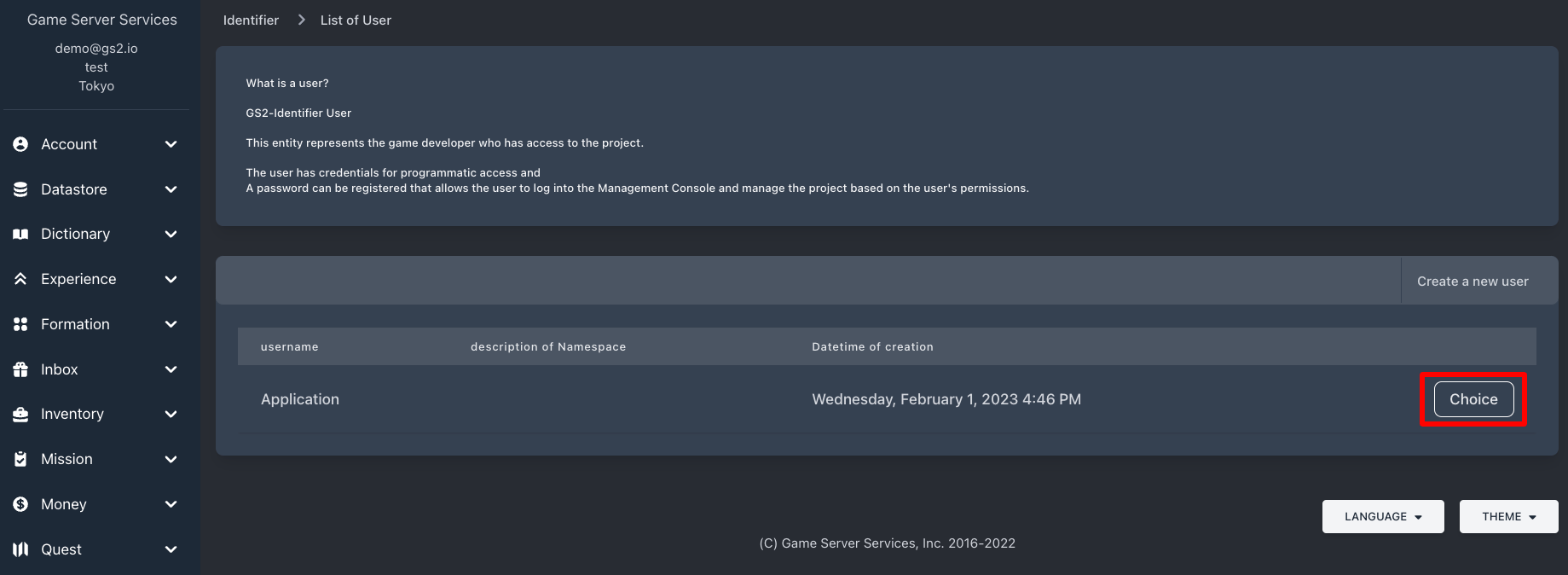
On the “Identifier > User List” page, select the user you just created.
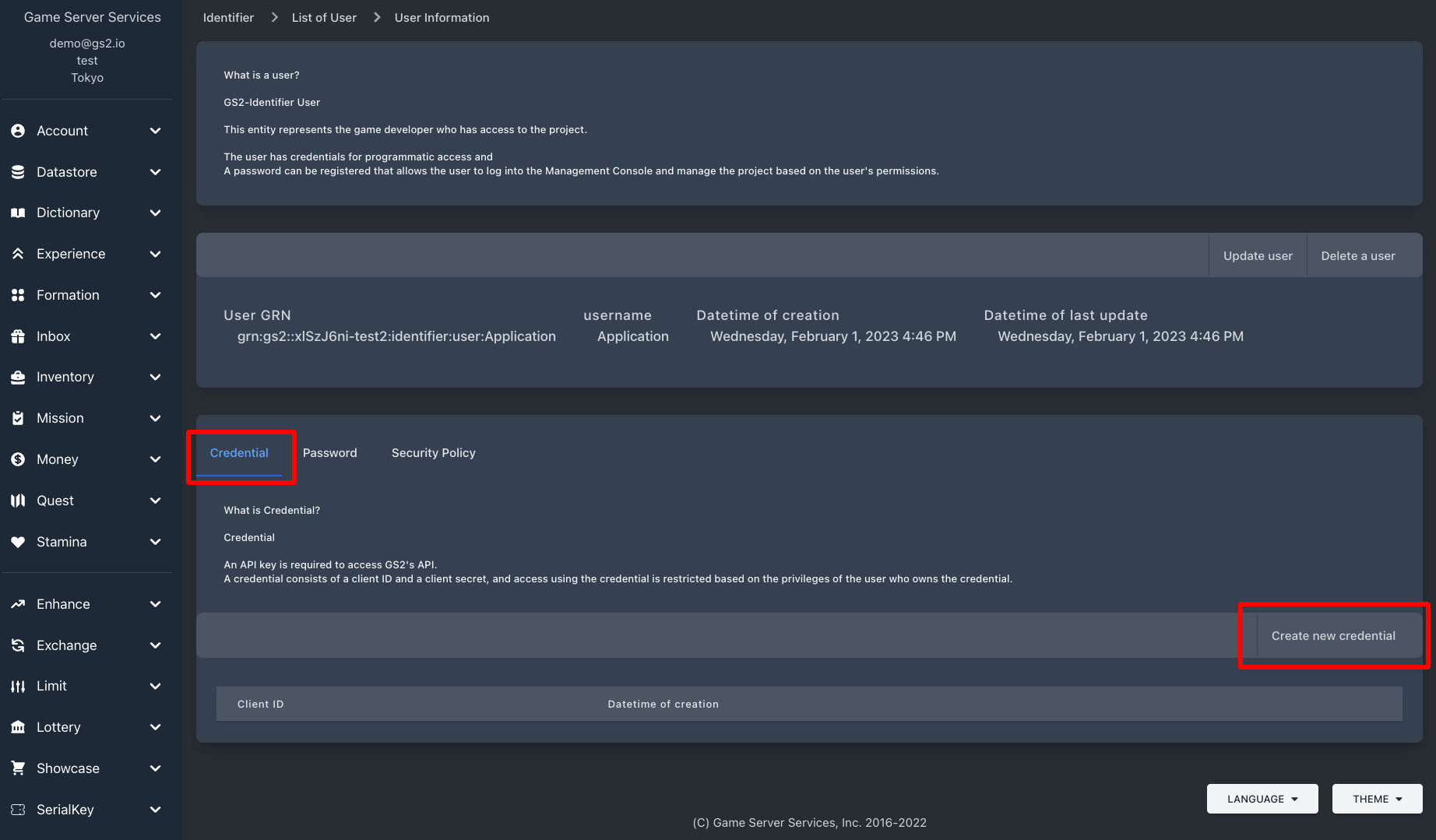
On the “Identifier > User List > User Information” page, add credentials for the user. On the Credentials tab, click Create New Credential.
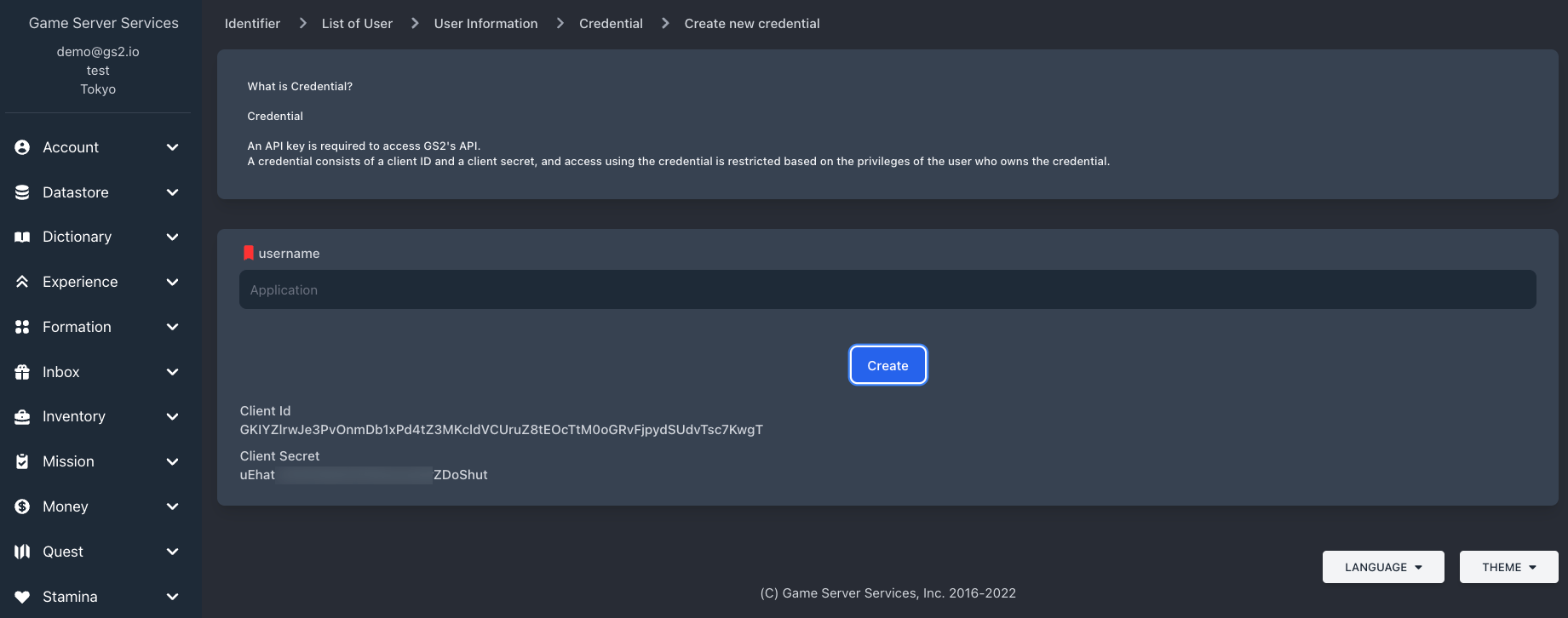
After clicking Create on the “Identifier > User List > User Information > Credentials > Create New Credential” page, a Client Id and Client Secret will be issued.
Please keep the issued Client Id and Client Secret with you.
Set Permissions for the User
Assign a security policy to the newly created user. Here we assign the security policy ApplicationAccess, which is already defined as a standard application access policy.
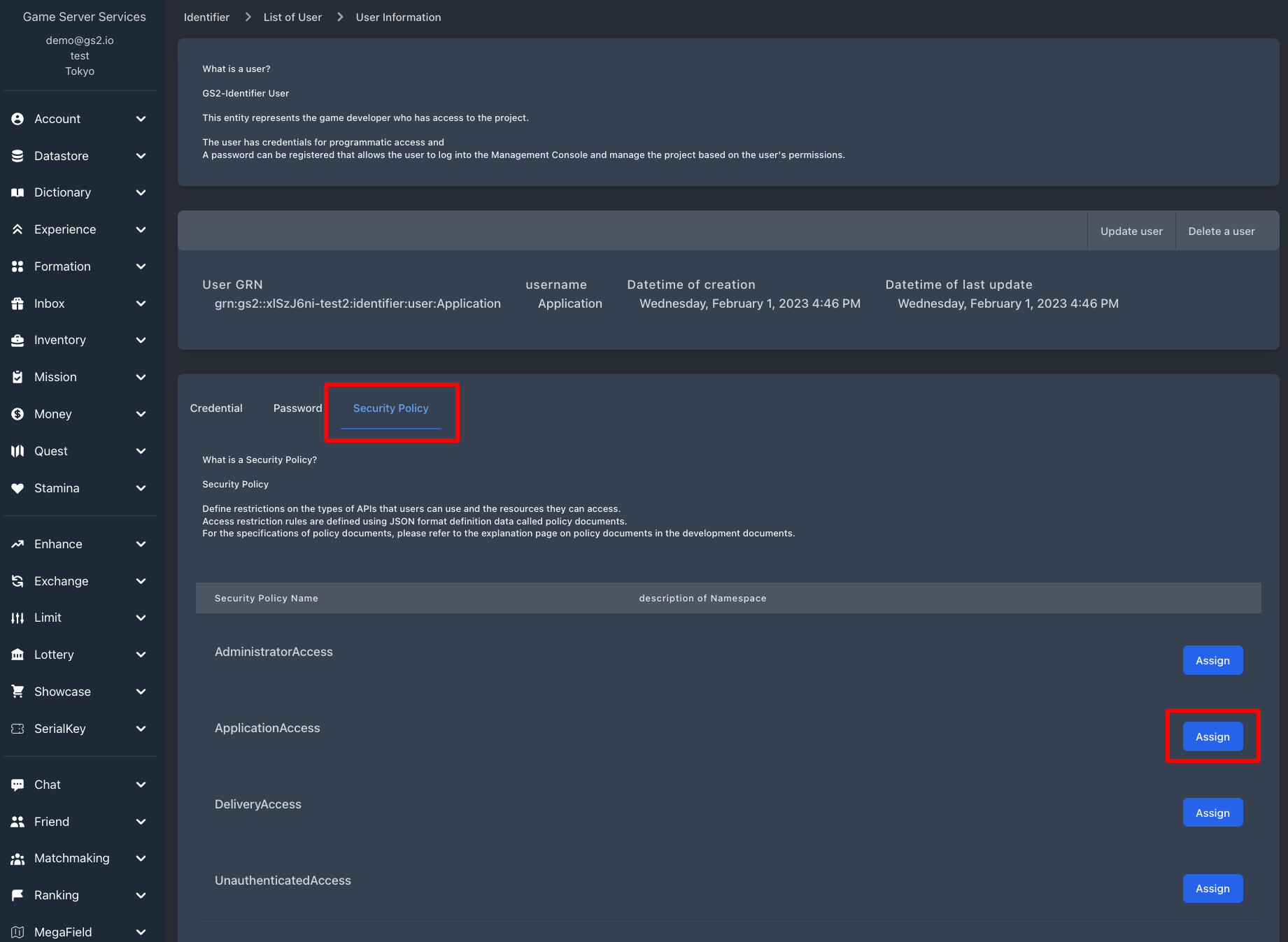
Click the Assign button for the security policy name ApplicationAccess in the Security Policy tab of the Identifier > User List > User Information page.
The application is now ready to access the GS2 project.