Login examples for Unreal Engine and Godot
Sample code from account creation to login
This reference covers SDK installation for each game engine. For the step-by-step Unity tutorial, start with Prepare your adventure game development environment.
For Unreal Engine 5 and Godot login examples, see Account creation and login code.
GS2 SDK for Unity Installer Version 2024.4.1
Download the UnityPackage installer using the link above.
Create a Unity project or open an existing one in the Unity Editor.
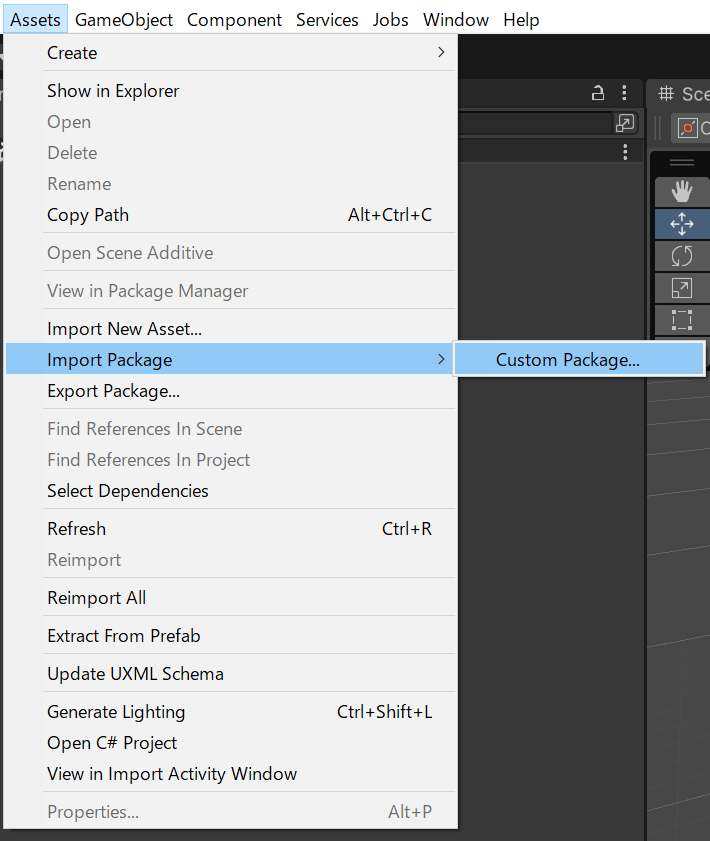
Import gs2-unity-installer_2024.4.1.unitypackage through Assets > Import Package > Custom Package….
In the Unity Editor menu, choose Window > Game Server Services > SDK Installer.

In the SDK Installer window, click Install.
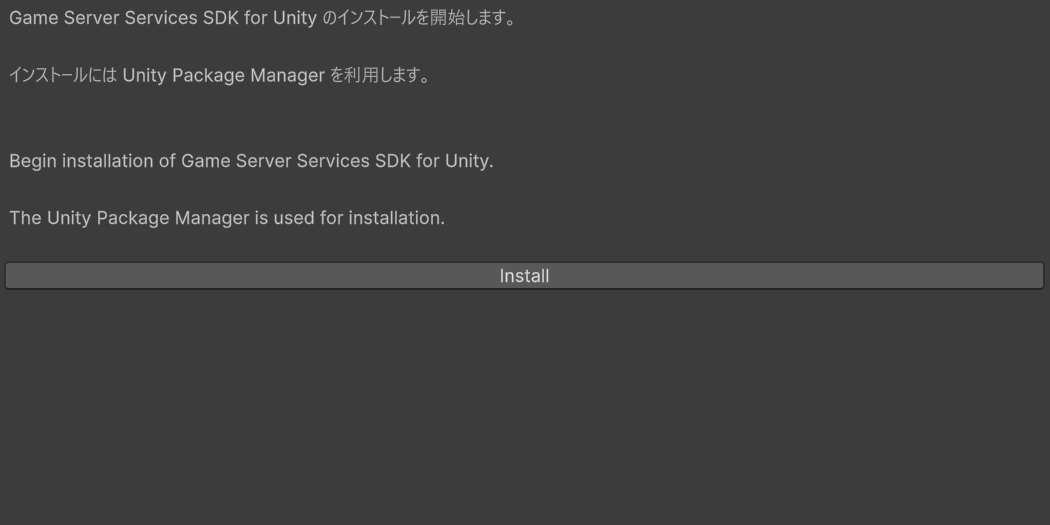
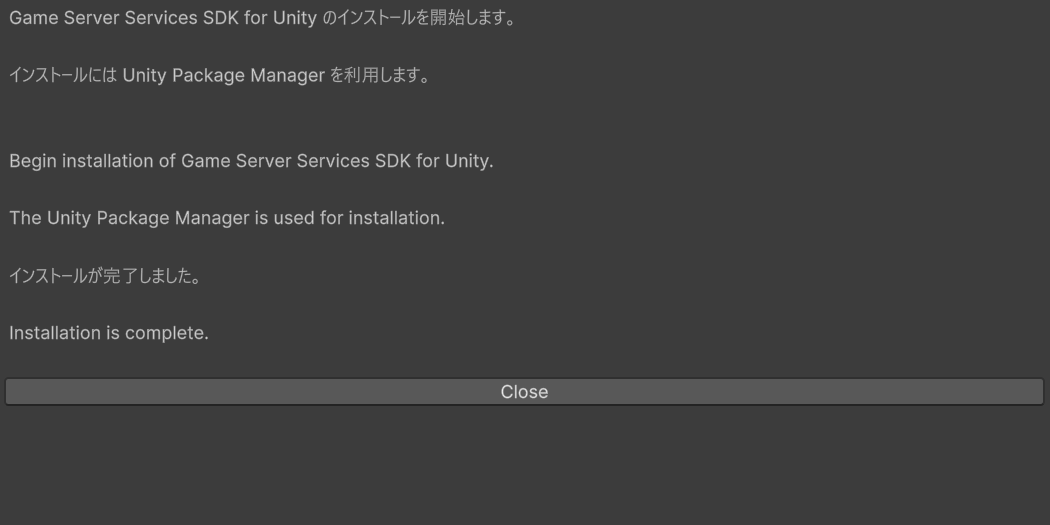
Once installation finishes, the SDK appears under the project’s Packages. You can also confirm it in Package Manager.
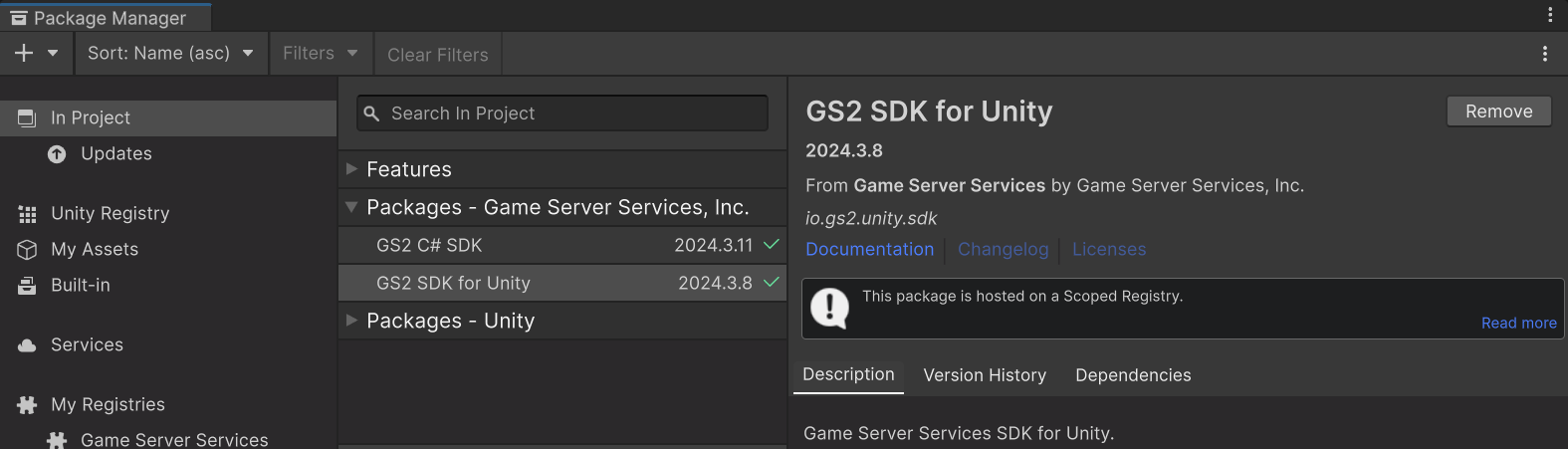
The Unity SDK consists of GS2-CSharp-SDK and GS2 SDK for Unity.
If it does not work correctly after installation, try restarting the Unity Editor.
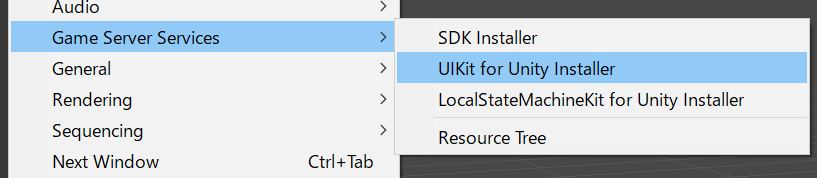
In the Unity Editor menu, choose Window > Game Server Services > UIKit for Unity Installer.
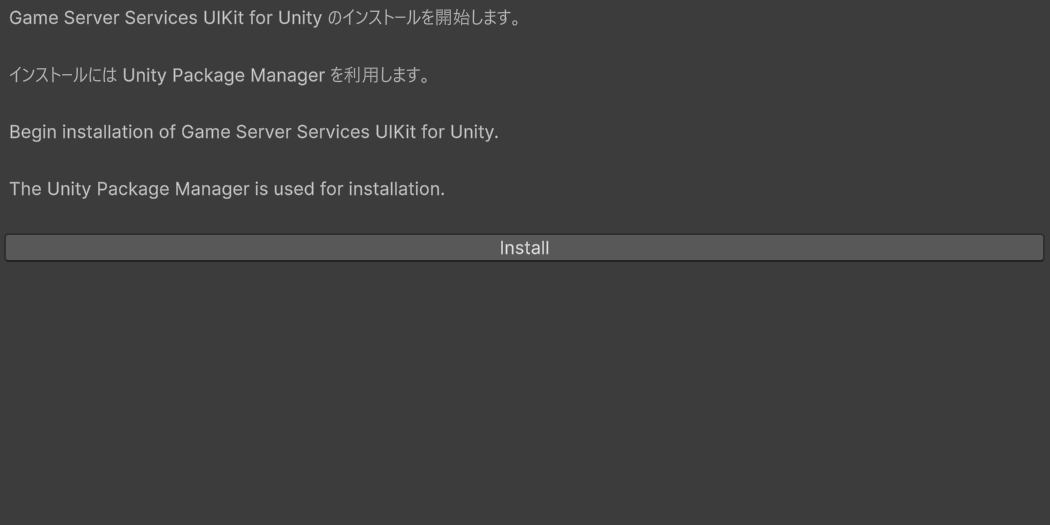
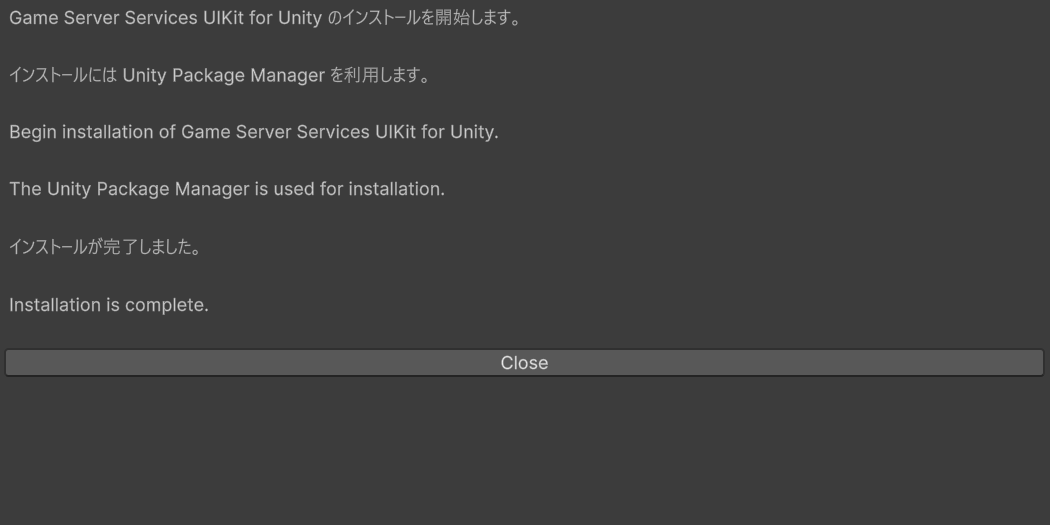
Once installation finishes, the SDK appears under the project’s Packages. You can also confirm it in Package Manager.
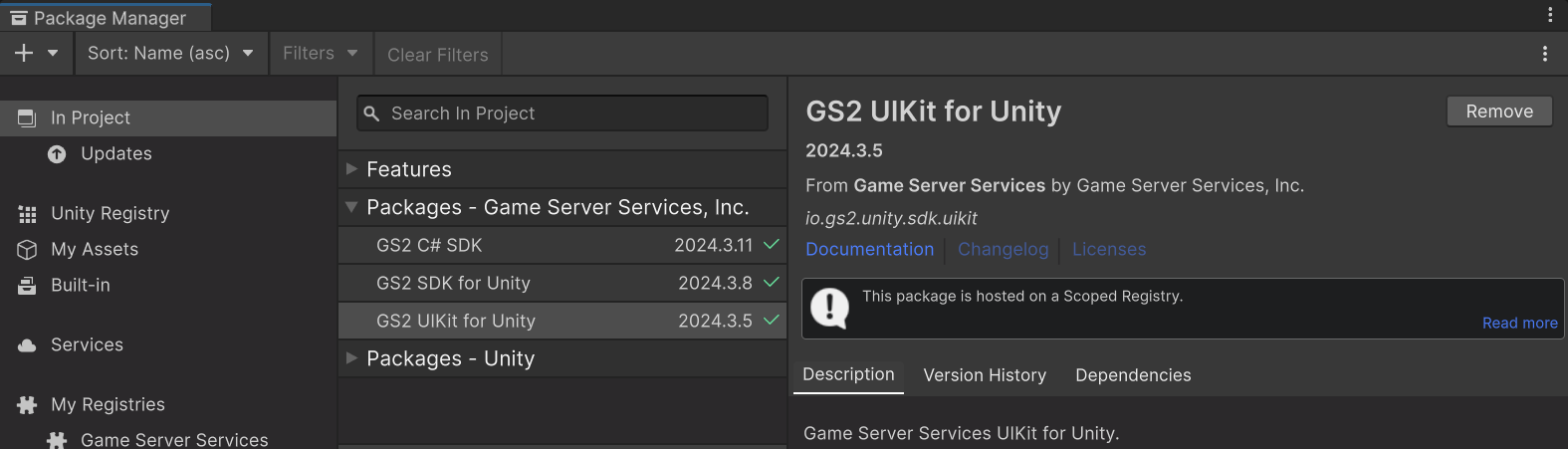
If it does not work correctly after installation, try restarting the Unity Editor.
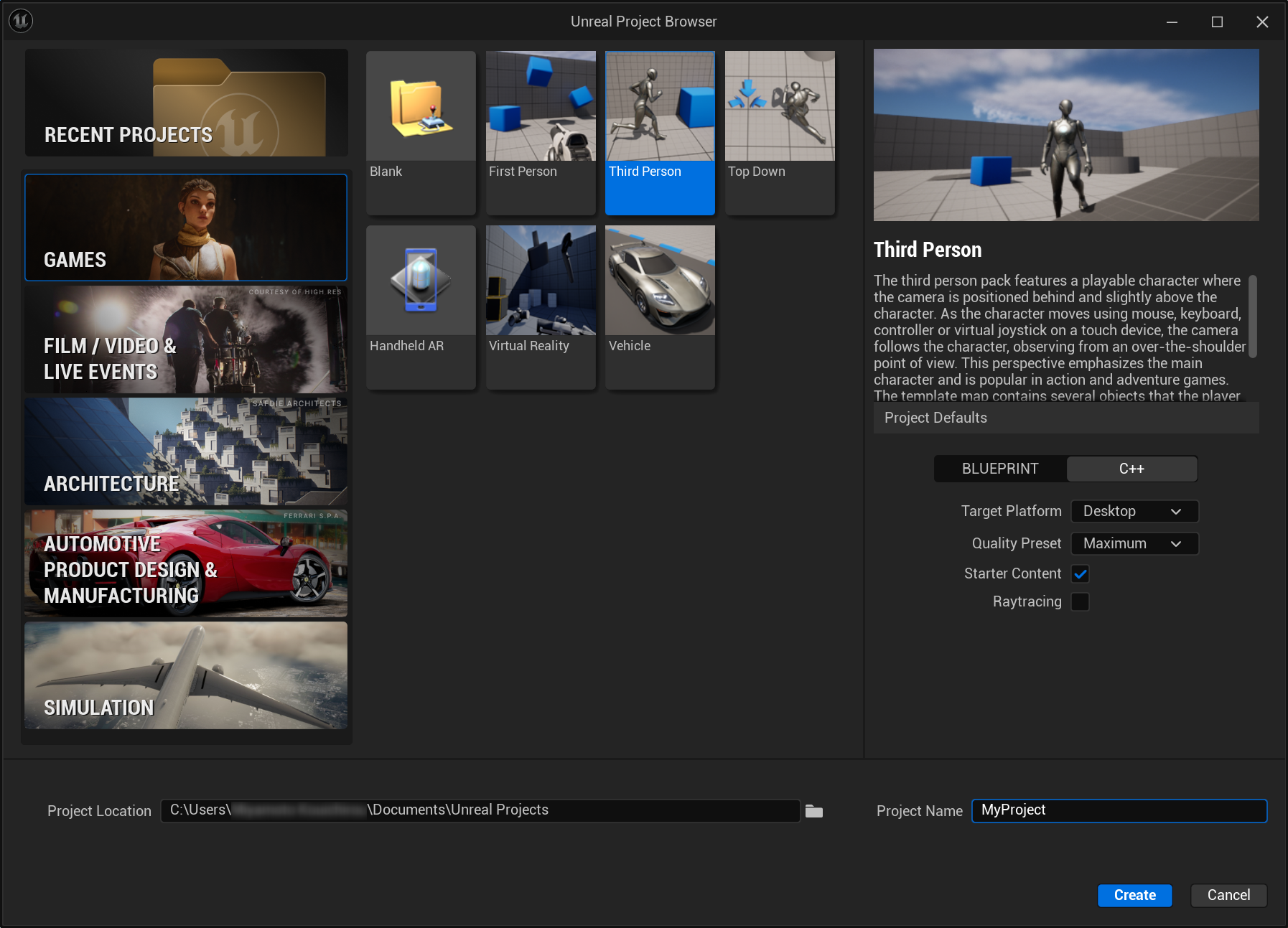
Create an Unreal project or prepare an existing one.
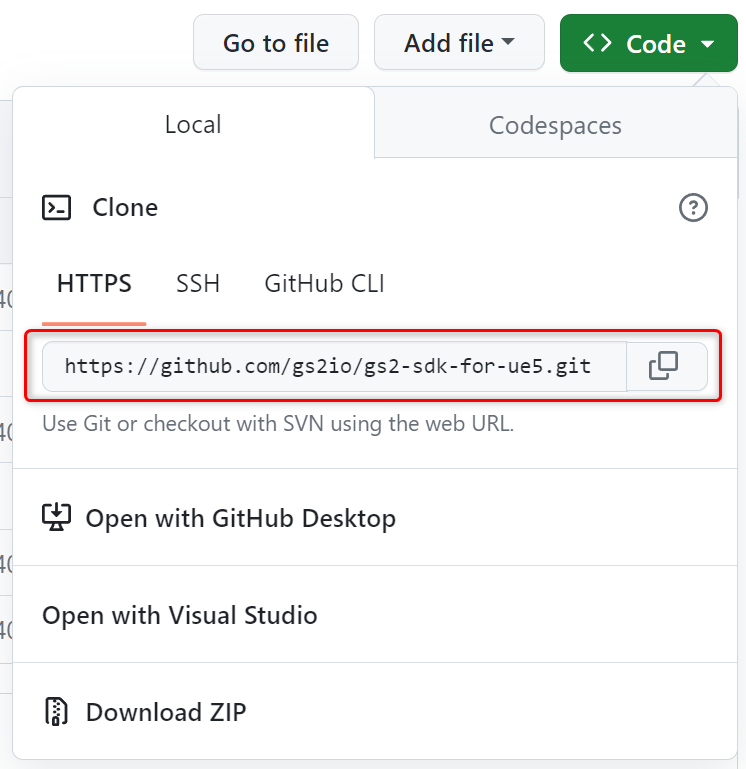
Clone the GS2 SDK for Unreal Engine 5 repository on GitHub.
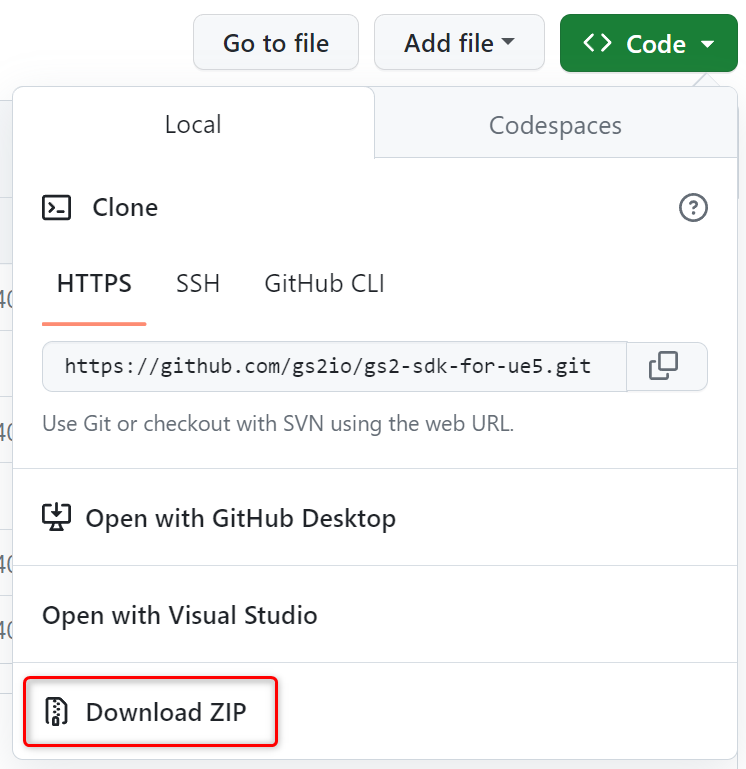
Alternatively, download a ZIP and extract it to a folder.
Copy the source files into the Unreal project.
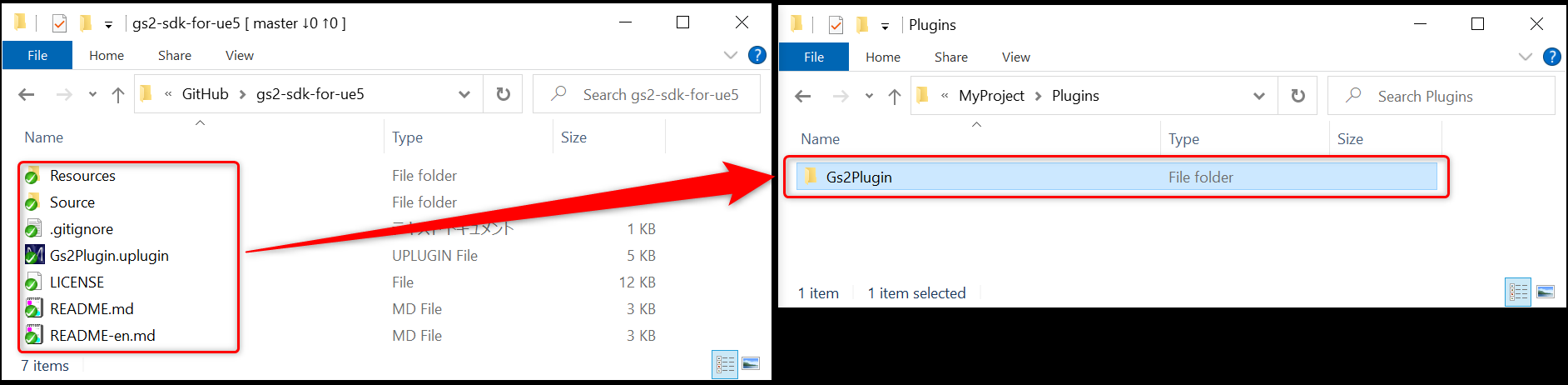
Use the following folder inside the Unreal project.
(Unreal project)/Plugins/Gs2PluginCreate a Plugins folder if it does not exist.
Create a Gs2Plugin folder inside Plugins and copy all the downloaded files into it.
Open the uproject file in Unreal Editor.
Open the Plugins window and enable the GS2 plugin.
Restart Unreal Editor.
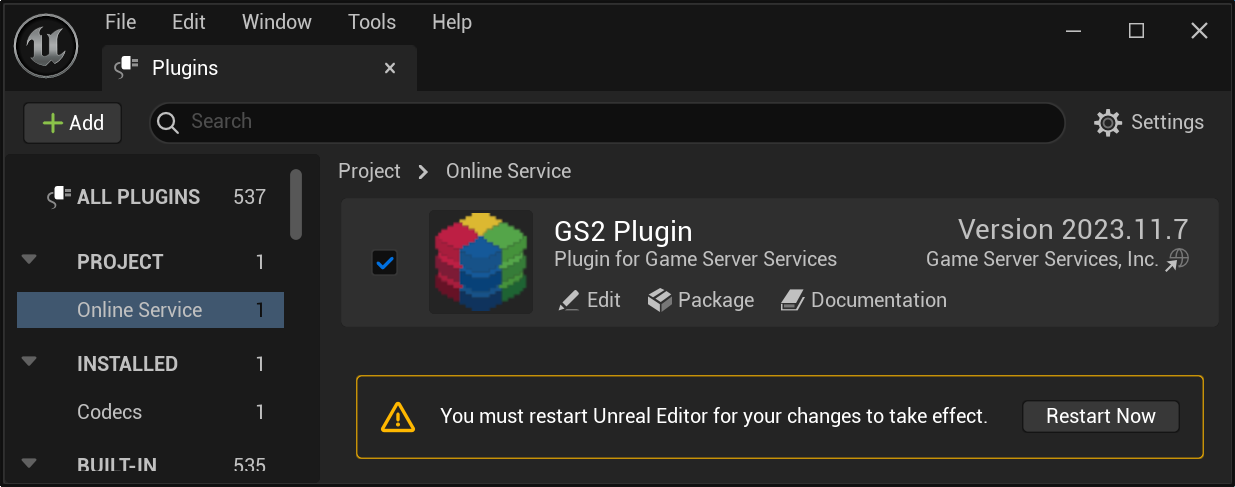
When prompted to build the GS2 plugin, choose Yes.
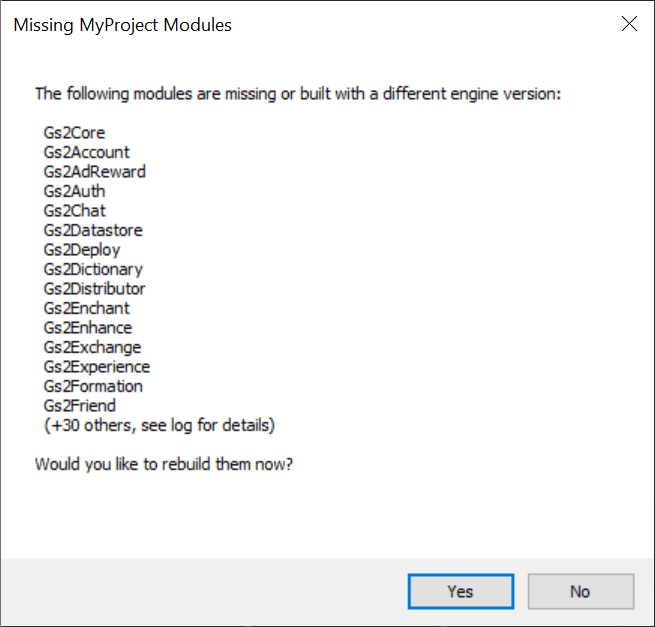
The build can take some time, depending on your environment.
Unreal Editor starts once the plugin builds successfully.
Installation is complete.
If you build Unreal Engine from source obtained through GitHub or Perforce, you can install the SDK as an engine plugin.
Clone the GS2 SDK for Unreal Engine 5 repository on GitHub.
Alternatively, download a ZIP and extract it to a folder.
Create the following folder inside the Unreal Engine source tree and copy all downloaded source files into it.
(Unreal Engine source)/Engine/Plugins/Gs2Plugin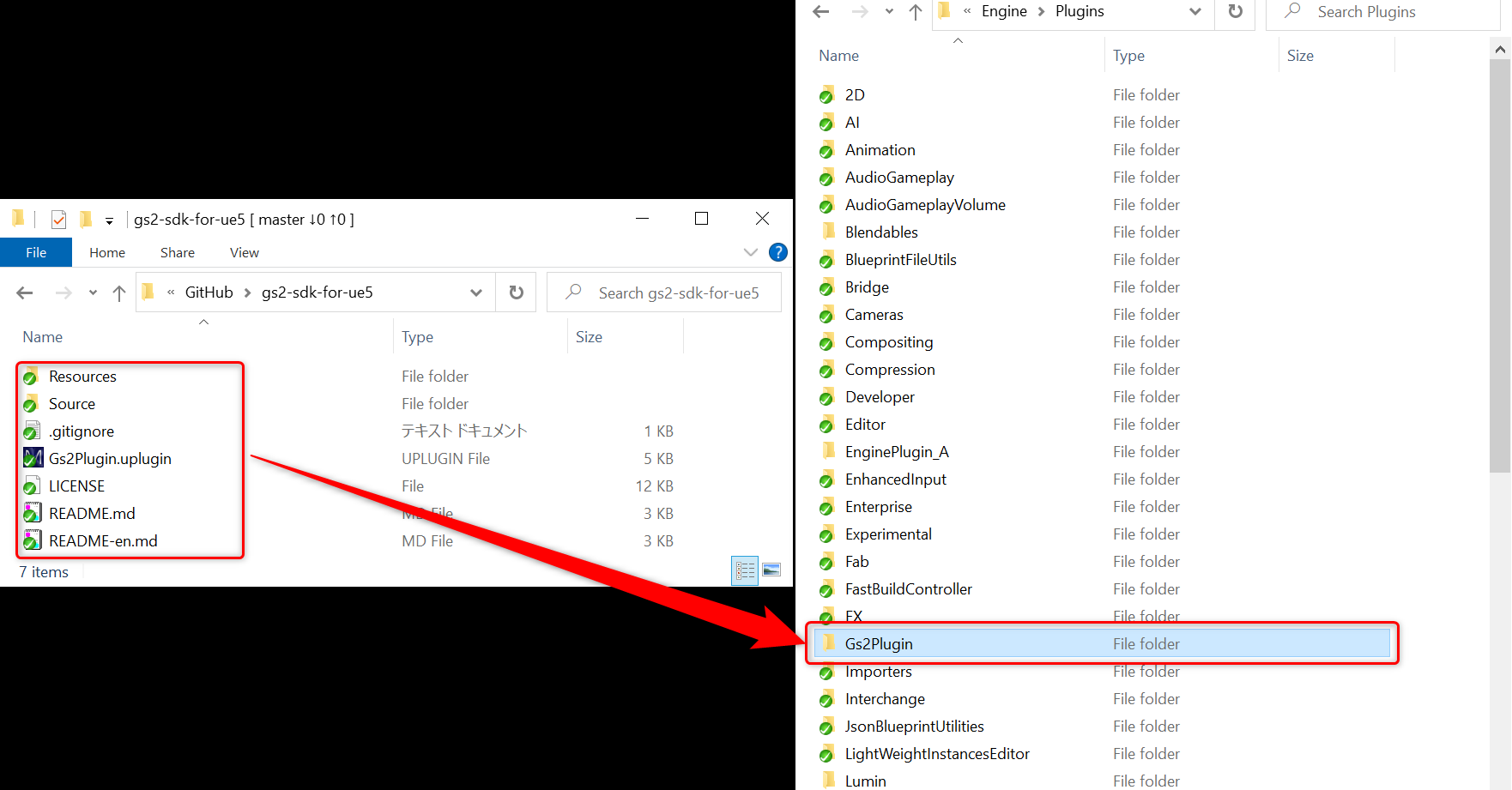
Run GenerateProjectFiles.bat to update the project files.
Open UE5.sln and build Unreal Engine.
After the build, start Unreal Editor, enable the GS2 plugin, and restart the editor.
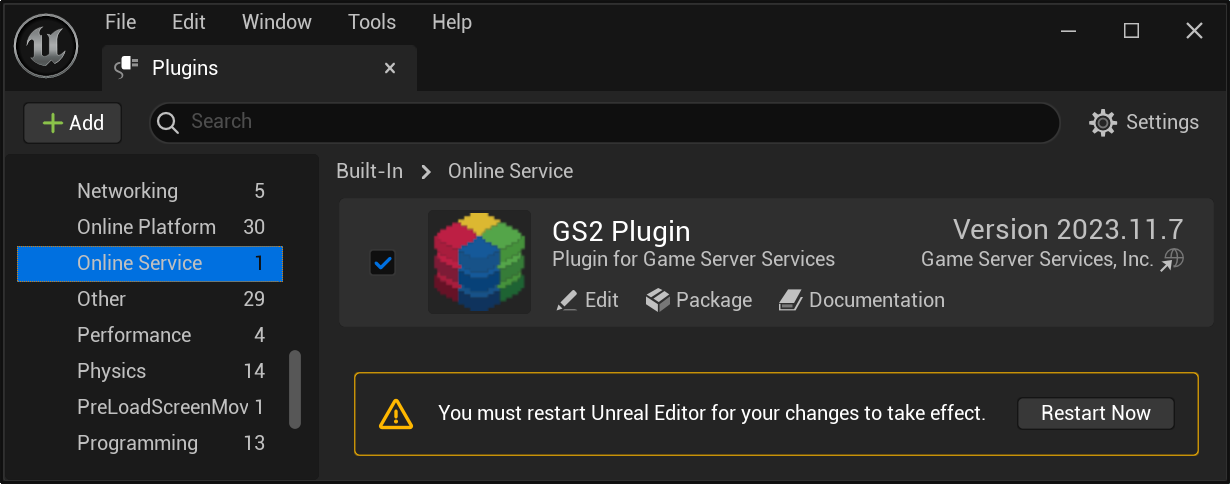
Installation is complete.
GS2 SDK for Godot supports Godot 4 (GDScript).
From the latest GS2 SDK for Godot release on GitHub, download Source code (zip) under Assets.
Extract the ZIP to a folder.
Copy the extracted addons/gs2 folder into your Godot project.
Place it at the following location in the Godot project.
(Godot project)/addons/gs2Create the addons folder if it does not exist.
Open the project in Godot Editor. Installation is complete when res://addons/gs2/ appears in the FileSystem dock.
To write GS2-Realtime rules in GDScript, build them with the Realtime rule compiler (gs2-realtime-compiler). The compiler is distributed in the Assets of the same SDK release.
| File | OS |
|---|---|
gs2-realtime-compiler-win-x64.zip | Windows(x64) |
gs2-realtime-compiler-osx-arm64.zip | macOS (Apple silicon) |
gs2-realtime-compiler-osx-x64.zip | macOS(Intel) |
gs2-realtime-compiler-linux-x64.zip | Linux(x64) |
Extract the ZIP for your OS and set gs2/realtime/compiler_path in Godot’s editor settings to the extracted executable. When updating the SDK, use the compiler from the same release.
For rule authoring and build steps, see Write rules in GDScript.
Sample code from account creation to login