7. Change settings and apply them to the game
With the basic game working, let’s change its content. Increase Forest exploration’s reward from 10 to 15 coins and add Cave exploration. Check how the settings affect the display and the rewards you receive.
Before you start
Clear any active quest and wait for purchases or other operations to finish before changing settings.
Changes to make
| Quest | Stamina cost | Normal reward | First-clear reward |
|---|---|---|---|
forest Forest exploration | 5 | 15 coins | None |
cave Cave exploration | 8 | 20 coins | None |
Steps
Edit the existing row and add a new one
Open Tables → Quest (Quest) and make these edits.
| ID | Group | displayName | Start costs consumeValue | Normal clear reward count |
|---|---|---|---|---|
forest | main | Forest exploration | 5 | 15 |
cave | main | Cave exploration | 8 | 20 |
Open the normal clear rewards for forest and set depositTransactions → DepositTransaction → count to 15.
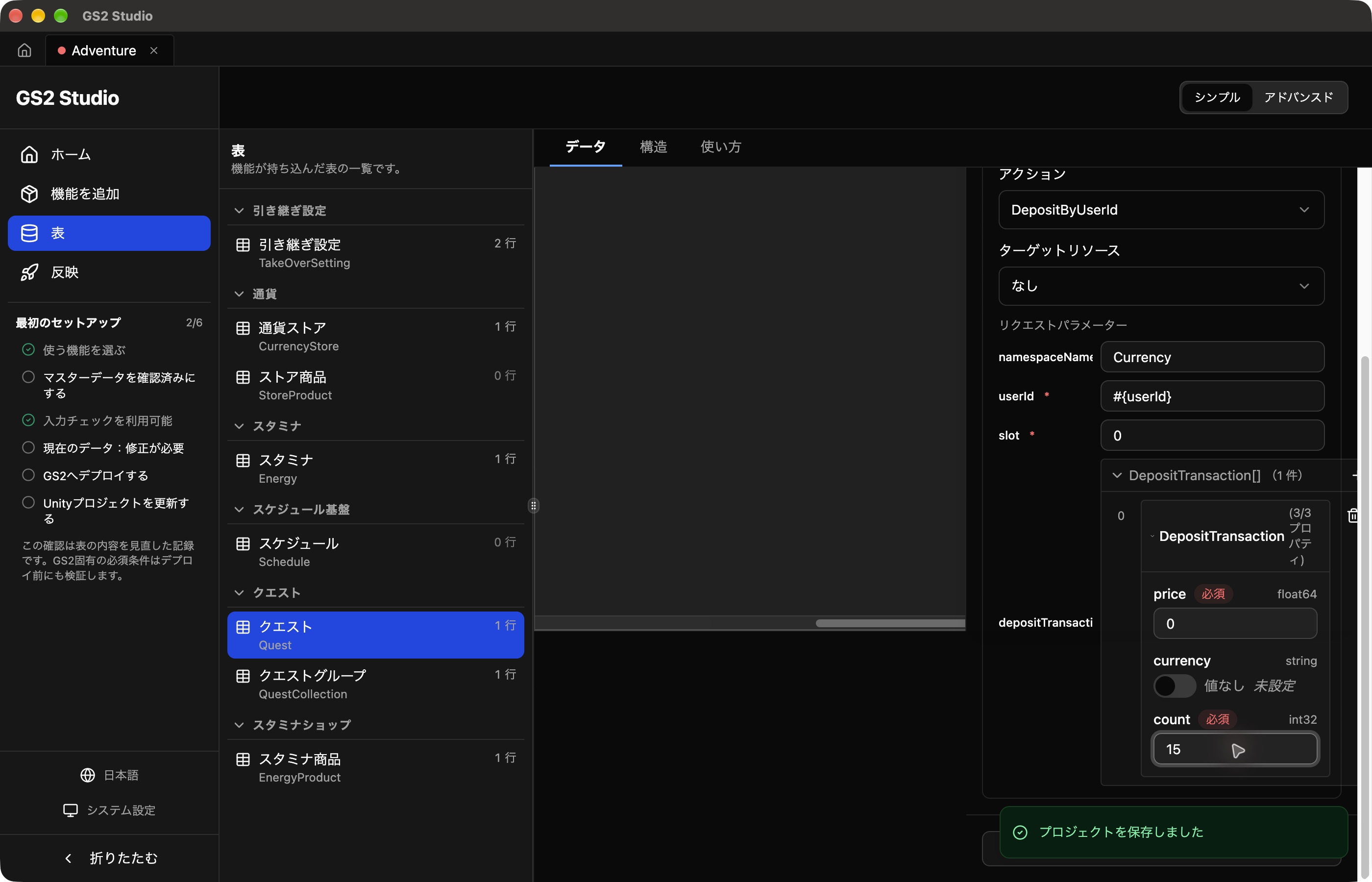
Add a row for cave. Configure one ConsumeStaminaByUserId starting-cost action and one DepositByUserId normal clear reward.
- Start costs:
namespaceName = Energy,staminaName = stamina,userId = #{userId},consumeValue = 8. - Normal clear reward:
namespaceName = Currency,userId = #{userId},slot = 0. Add onedepositTransactionsitem withprice = 0, no value forcurrency, andcount = 20. - Leave first-clear rewards and failure actions empty.
Save, then apply the changes to both GS2 and Unity.
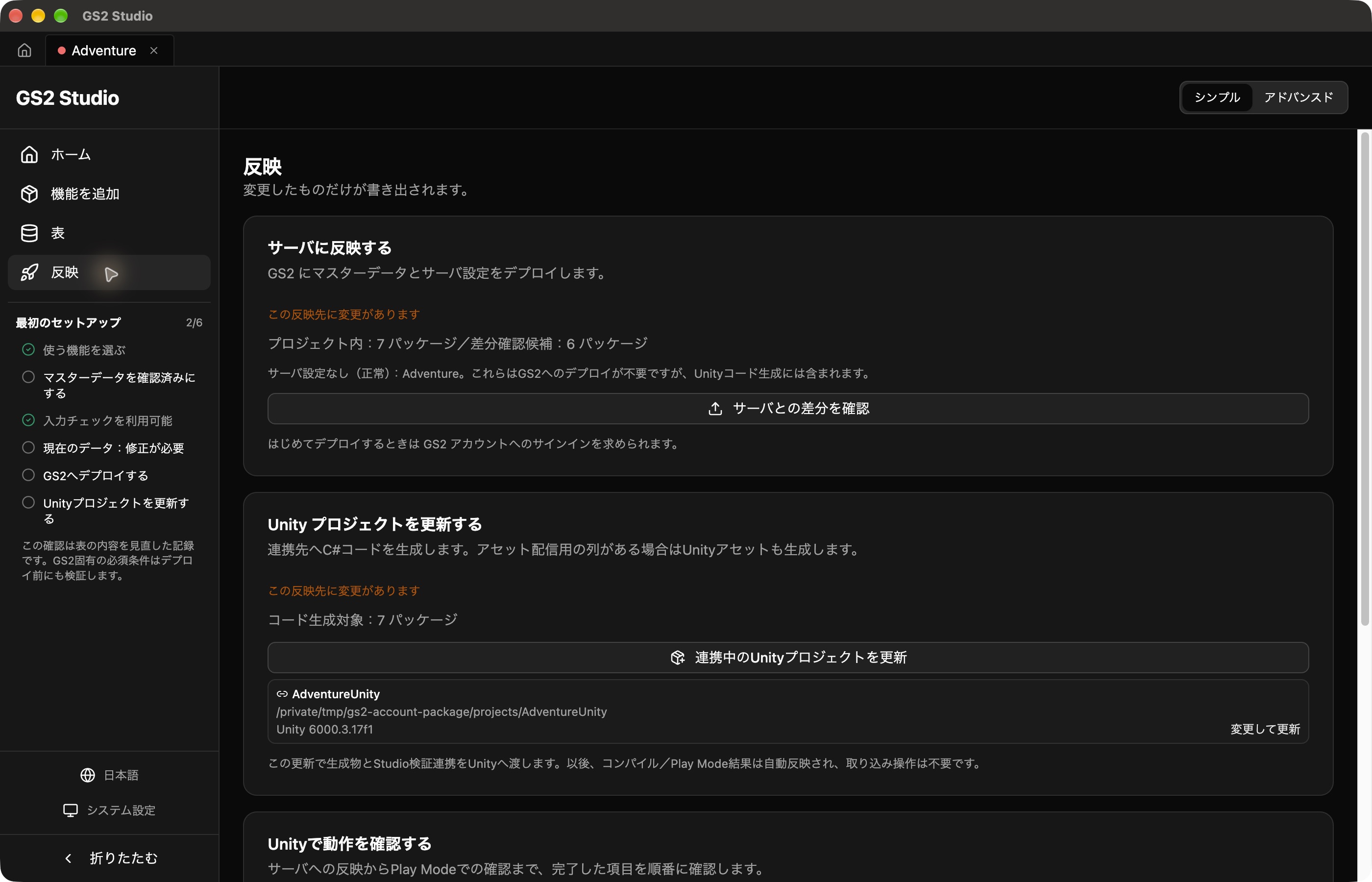
- Under Publish → Calculate server differences, review the Forest change and Cave addition, then deploy.
- Run Update the Unity project. This is needed because
displayNameis also exported to Unity assets. - Stop and restart Play Mode, then log in.
- Check that both quests appear. The code calls
Start()on each row, so no Cave-specific start code is needed.
Update the settings
Download the chapter 7 template. Open Deploy → adventure-game → Update stack and select it under Template data. This complete template includes the previous resources. Review and apply the changes, then wait for Update complete.
The template changes forest’s deposit to 15 and adds cave. Keep chapter 6’s code, stop and restart Play Mode, and log in. Forest and Cave are loaded from the main group. The code starts the selected quest by its Name, so the new Cave quest works too.
Try the new quest
Open the list and try both quests. After deployment, settings can take up to five minutes to take effect. If the old list or rewards remain, wait a little, restart Play Mode, and check with a new quest.
- Both Forest and Cave appear in the list.
- Starting and clearing a new Forest quest adds 15 coins.
- Starting Cave spends 8 stamina; clearing it adds 20 coins.
- Existing coins remain, with only the clear reward added.
An active quest retains its settings from when it started. Start a new quest to check changed settings. If Unity also stores display data, update it alongside the GS2 settings.
Practice: create another quest
Add a quest with your own name, stamina cost, and rewards. Start it from the list, clear it, and receive the rewards. Also check what happens with too little stamina and after restarting the app.
What to check
- Note the coin balance before selecting the new quest.
- Click Start, then Complete for that quest.
- Subtract the old balance from the balance after clearing. If the difference matches the configured reward, the new quest’s reward was received.