> For the complete documentation index, see [llms.txt](/llms.txt)
# 6. Restore stamina with coins
Build a small shop and spend the coins you earned to restore stamina.
Let’s spend the coins earned from quests. Create a product named `refill` that restores 10 stamina for 20 coins. Players can buy it with the free coins received as quest rewards.
## Process payment and recovery together
Combine the coin payment and stamina recovery into one transaction. If the player has too few coins, the purchase must fail without restoring stamina.
## Steps
**Studio**
### Create the product table
Add **Stamina Shop** under **Add features**, then create the following row in **Tables → Stamina product (EnergyProduct)**.
| Field | Value |
| --- | --- |
| ID | `refill` |
| Recovery target (energy) | The `stamina` row |
| Recovery amount (recoveryValue) | `10` |
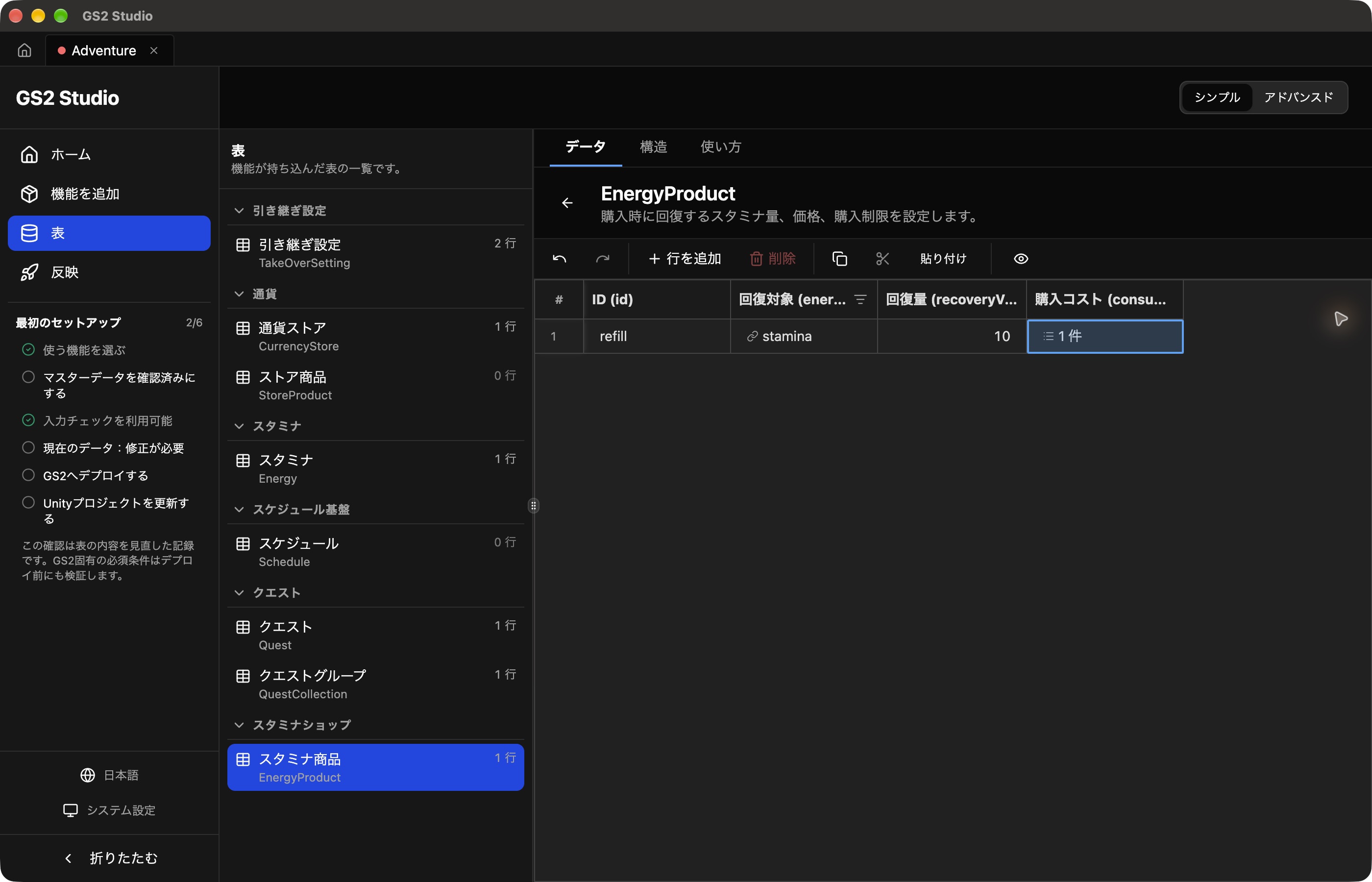
| Purchase cost (consumeActions) | One consume action, configured below |
Double-click **Purchase cost** and open **Add item → Not set**. Select `WithdrawByUserId` (withdraw from wallet), leave **Target resource** at **None**, and enter these values.
| Field | Value |
| --- | --- |
| namespaceName | `Currency` |
| userId | `#{userId}` |
| slot | `0` |
| withdrawCount | `20` |
| paidOnly | `false` |
Setting `paidOnly` to `false` allows payment with the free coins earned in this tutorial.
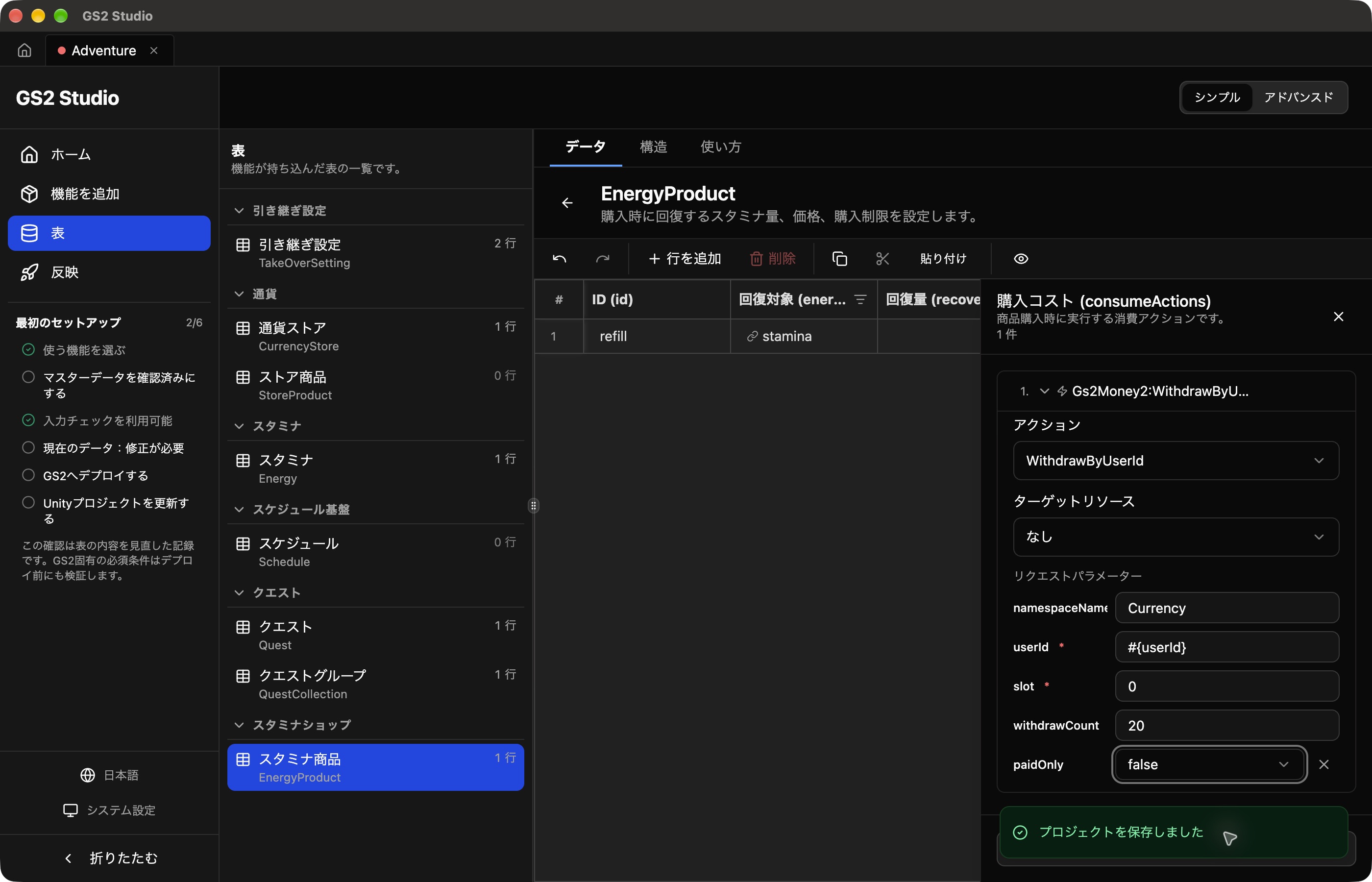 Close the editor on the right. Check that `refill` targets `stamina`, restores `10`, and has one purchase-cost action, then save.
 Deploy to GS2 and update Unity. Replace `AdventureStudioView.cs` with this chapter’s version to add a purchase button. Check the existing Quests, Progress, Wallet, and Energy assignments.
The stamina shop package creates an Exchange namespace named `EnergyProduct`. The purchase button calls `Buy()` below. Layout and current-value display are kept in separate methods.
```csharp
private async Task Buy()
{
var request = Gs2ClientHolder.Instance.Gs2.Exchange.Namespace("EnergyProduct")
.Me(Gs2GameSessionHolder.Instance.GameSession).Exchange();
var transaction = await request.ExchangeAsync("refill", 1, speculativeExecute: false);
if (transaction != null) await transaction.WaitAsync(all: true);
}
```
Download AdventureStudioView.cs for this chapter
**SDK (Unity)**
### Update the settings
Download the chapter 6 template. Open **Deploy → adventure-game → Update stack** and select it under **Template data**. This complete template includes the previous resources. Review and apply the changes, then wait for **Update complete**.
The template’s `refill` combines `Gs2Money2:WithdrawByUserId` with `withdrawCount = 20` and `paidOnly = false`, and `Gs2Stamina:RecoverStaminaByUserId` with `recoverValue = 10`. The exchange uses `timingType: immediate`.
### Update the Unity code
Download AdventurePlay.cs and replace the file in `Assets`. Keep chapter 5’s `AdventurePlayer.cs`.
Keep the existing Inspector settings.
The relevant part of the script is shown below. You do not need to add this excerpt as another class.
```csharp
private async UniTask BuyRefill()
{
var transaction = await player.Gs2.Exchange.Namespace("adventure-shop").Me(player.Session)
.Exchange().ExchangeAsync("refill", 1, speculativeExecute: false);
awaitingResult = true;
if (transaction != null) await transaction.WaitAsync(all: true);
}
```
Disable the button during the purchase, then display the updated coins and stamina when it completes.
## Try buying the product
Use the coins you earned to restore stamina for the same player.
1. Make sure you have at least 20 coins and at most 10 stamina. If you need coins or have too much stamina, start and clear Forest exploration to adjust them.
2. Note the coins and stamina before clicking the purchase button.
3. Check that coins decrease by 20 and stamina increases by 10. For example, 30 coins and 5 stamina become 10 coins and 15 stamina.
4. Stop and restart Play Mode. Studio logs in automatically; with the SDK, click **Log in**. Check that the new balance and restored stamina remain.
Stamina recovers up to 20. Include any natural recovery that occurs during these actions or the restart when comparing values.
With fewer than 20 coins, the purchase fails and an error appears. A failed purchase neither spends coins nor restores stamina.
## Practice: change the settings
Change the price to 25 coins. First, clear Forest exploration until you have at least 25 coins and at most 10 stamina. Does the screen show 25, and does buying spend 25 coins? After deployment, cost changes can take up to five minutes to take effect. If the display says 25 but only 20 are spent, wait a little and check the next purchase.
In Studio, set `withdrawCount` in the product’s purchase cost to `25`; with the SDK, change it in the template. Deploy the change. The sample button uses fixed text, so also change `Restore 10 stamina for 20 coins` to `Restore 10 stamina for 25 coins`.
## Before moving on
**Restore the price to 20 coins and update both the display and the cost settings.** Keep recovery at 10. Wait five minutes after deployment, earn coins in Forest exploration, then buy and check that 20 coins are spent before moving on.
[Next: Change settings and apply them to the game]()