5. Spend stamina when starting a quest
Let’s make quests cost stamina. Starting Forest exploration costs 5; if you have less, you must wait for it to recover.
Before you start
Complete any active quest before adding the stamina settings.
Settings to add
Name the stamina setting stamina. Both its initial value and normal recovery limit are 20. Spent stamina recovers naturally by 1 every 300 seconds.
Steps
Create the stamina table
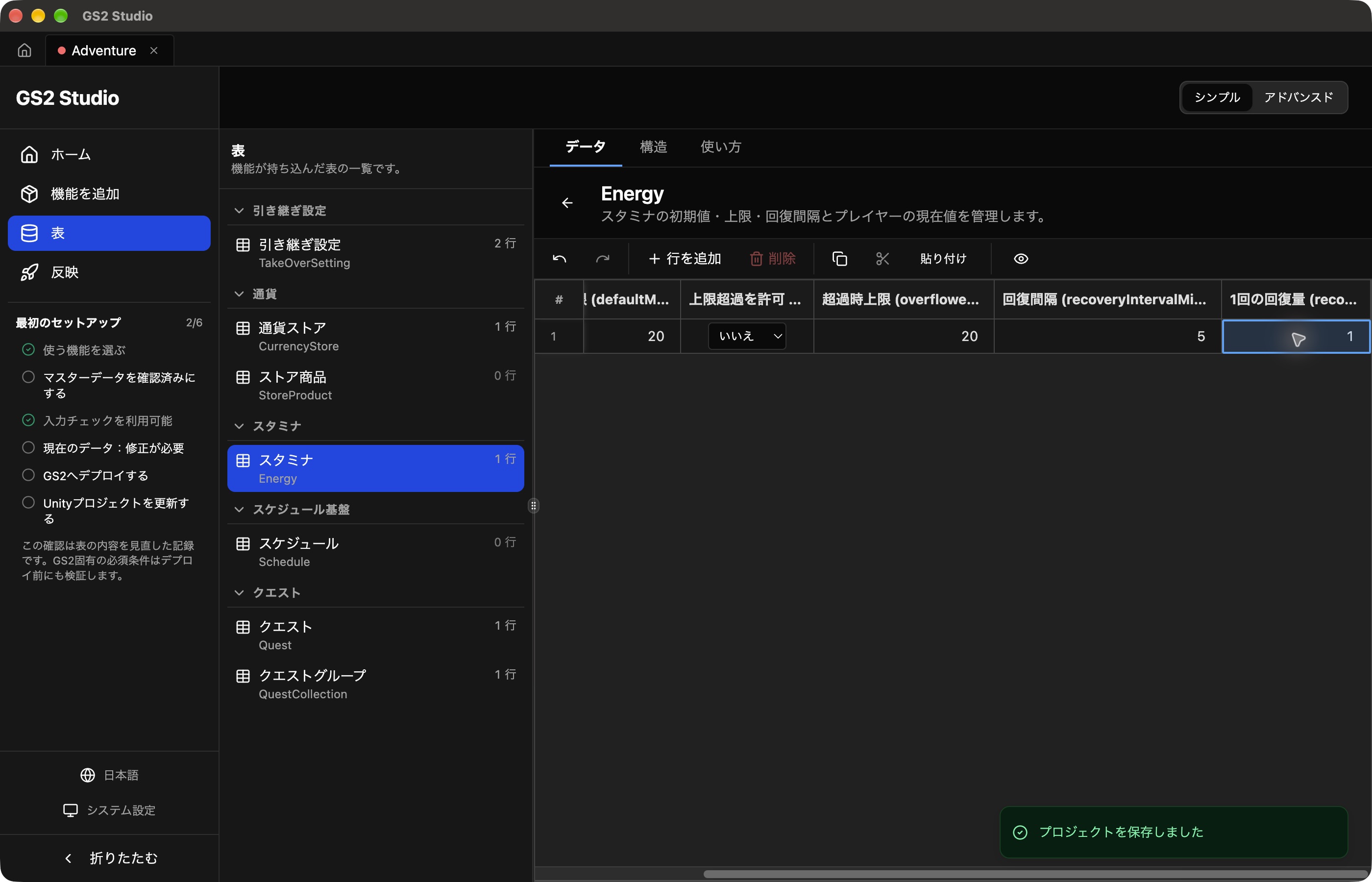
Add Stamina under Add features, then create the following row in Tables → Stamina (Energy).
| Field | Value |
|---|---|
| ID | stamina |
| Initial maximum (defaultMaximum) | 20 |
| Allow overflow (useOverflow) | Off |
| Overflow maximum (overflowedMaximum) | 20 |
| Recovery interval (recoveryIntervalMinutes) | 5 minutes |
| Recovery amount (recoveryValue) | 1 |
The recovery interval is entered in minutes. Enter 5 for a 300-second interval.
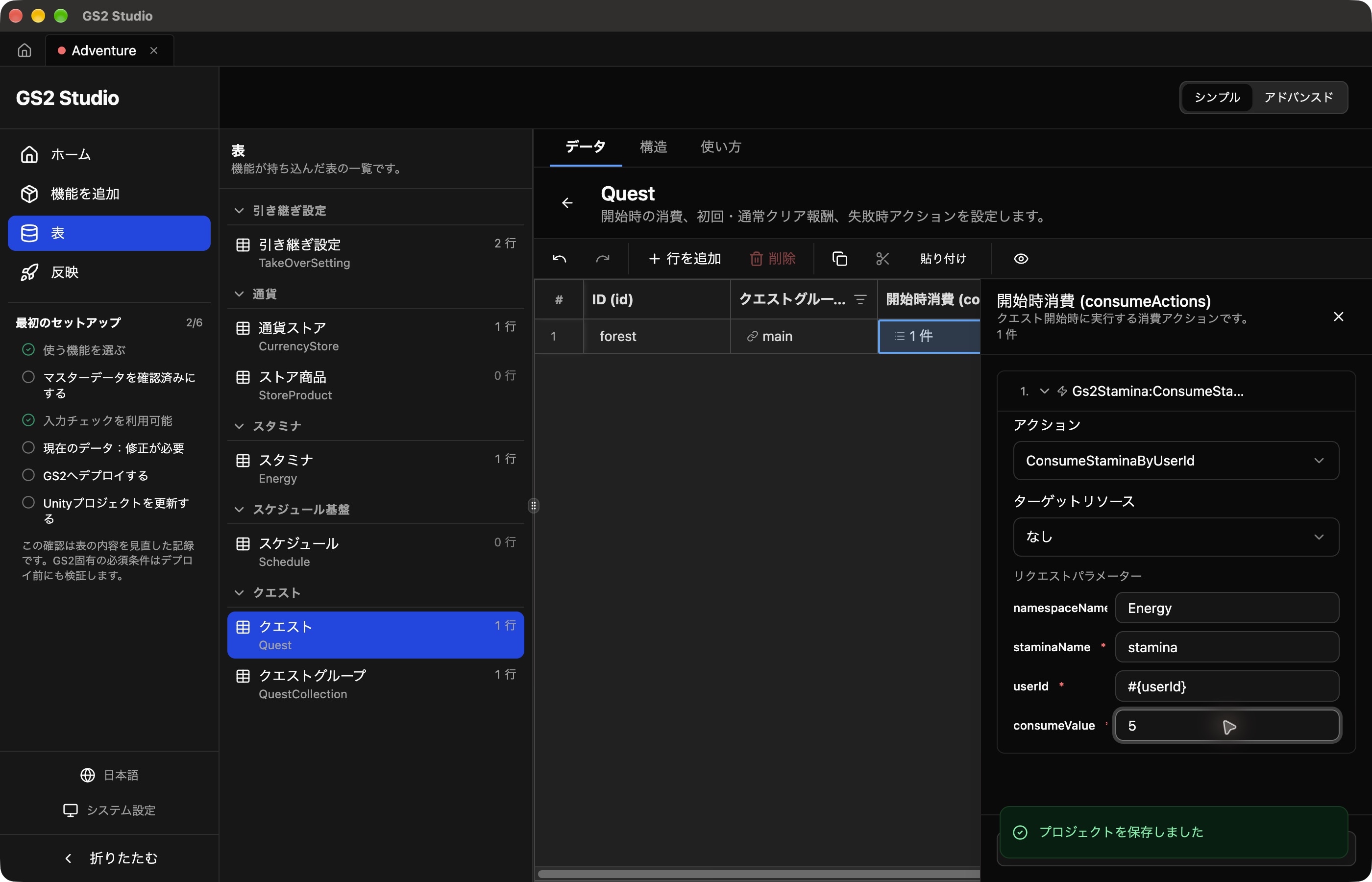
Double-click Start costs for forest in Quest (Quest). Open Add item → Not set and select ConsumeStaminaByUserId (consume stamina). Leave Target resource at None and enter the following values.
| Field | Value |
|---|---|
| namespaceName | Energy |
| staminaName | stamina |
| userId | #{userId} |
| consumeValue | 5 |
Keep chapter 3’s normal clear reward: deposit 10 coins into slot 0 in Currency.
Deploy to GS2 and update Unity.
Download AdventureStudioView.cs for this chapter and replace Assets/AdventureStudioView.cs.
Add EnergyHandler to the Gs2 object in Unity, set Id to stamina, and assign it to Energy on AdventureStudioView.
DrawPlayerStatus() displays the current values, including stamina updated by the handler.
private void DrawPlayerStatus()
{
    GUILayout.Label(wallet.HasValue
        ? "Coins: " + wallet.Model.Free
        : "Loading coins...");

    if (!progress.HasValue)
    {
        GUILayout.Label("Loading progress...");
    }
    else
    {
        GUILayout.Label(progress.Model.InProgress
            ? "Adventure in progress"
            : "Choose an adventure");
    }

    GUILayout.Label(energy.HasValue
        ? "Stamina: " + energy.Model.CurrentValue
        : "Loading stamina...");
}
Update the settings
Download the chapter 5 template. Open Deploy → adventure-game → Update stack and select it under Template data. This complete template includes the previous resources. Review and apply the changes, then wait for Update complete.
The template uses the stamina values below. recoverIntervalMinutes is in minutes, so write 5, not 300.
staminaModels:
  - name: stamina
    initialCapacity: 20
    isOverflow: false
    maxCapacity: 20
    recoverIntervalMinutes: 5
    recoverValue: 1
Configure the starting cost as Gs2Stamina:ConsumeStaminaByUserId, with staminaName = stamina and consumeValue = 5. Unity’s Start button still calls the same StartAsync() as in chapter 3.
Update the Unity code
Put these two files in Assets, replacing files with the same names.
- AdventurePlay.cs: quest controls and display
- AdventurePlayer.cs: subscribing to and unsubscribing from display data
Keep the existing Inspector settings.
The relevant part of the script is shown below. You do not need to add this excerpt as another class.
var meter = Gs2.Stamina.Namespace("adventure-stamina").Me(Session).Stamina("stamina");
var subscription = await meter.SubscribeWithInitialCallAsync(value => Stamina = value);
This callback updates the display after stamina is spent or purchased. For natural recovery, call the SDK’s PredictRecovery() when drawing. Display its returned value so stamina increases on screen while you wait.
using Gs2.Unity.Gs2Stamina.Model;

var now = DateTimeOffset.UtcNow.ToUnixTimeMilliseconds()
    + (player.Session.AccessToken.TimeOffset ?? 0) * 1000L;
var stamina = player.Stamina.PredictRecovery(now);
GUILayout.Label("Stamina: " + stamina.Value + " / " + stamina.MaxValue);
now is a millisecond timestamp aligned with the session’s clock. PredictRecovery() returns the recovered value without changing the original data received by the subscription.
Try spending stamina
Use the same player as before. After deployment, cost settings can take up to five minutes to take effect. If stamina does not decrease yet, clear the quest, wait a little, and start a new one to check.
- Check that stamina is at least 5 and note its current value.
- Start Forest exploration and check that stamina drops by 5: for example, from 20 to 15.
- Clear the quest and check that you receive 10 coins too.
If stamina recovered between actions, include that recovery when comparing the values.
Practice: change the settings
Try changing the quest’s stamina cost to 8. In Studio, change consumeValue in the starting cost; with the SDK, change consumeValue in the template. Set it to 8 and deploy.
With at least 8 stamina, start Forest exploration and check that it drops by 8. If you have less, wait for natural recovery. If it still drops by 5, clear that quest, wait a little, and start another. After checking, clear the quest, restore the cost to 5, and deploy. Keep the normal reward at 10 coins.
Check what happens when stamina is too low
Wait five minutes after deploying the restored cost, then start a new Forest exploration. Check that it costs 5 stamina, clear it, and then use up enough stamina to test the shortage.
- Start and clear Forest exploration until stamina is below 5.
- Click Start again. An error should appear, and the quest should not begin.
- Check that this failed attempt did not spend any stamina.
Stamina recovers by 1 every 300 seconds. You can start another quest once it reaches 5.