> For the complete documentation index, see [llms.txt](/llms.txt)
# 3. Start a quest and receive rewards
Award coins when a quest is cleared. Build the flow from starting a quest to receiving its rewards.
Let’s make **Forest exploration** playable. Click **Start** to begin and **Complete** to return with 10 coins. Every clear gives the same reward; this chapter does not add a first-clear bonus.
## Configure clear rewards in GS2
Set the reward amount in the GS2 quest settings. With a normal clear reward of 10 free coins, GS2 adds the coins when Unity reports a clear. Unity updates the display when the balance changes.
Coins are stored in a GS2-Money2 *wallet*. A wallet is identified by its *slot* number; this game uses `0`. Add the Money2 settings in this chapter and use the same wallet throughout the following chapters.
Completing a quest and depositing coins should be processed together. A sequence of operations like this is a *transaction*. Once a deposit is configured as a normal clear reward, Unity only needs to report the clear.
In the settings, operations that grant something, such as adding coins, are called *acquire actions*. Add a coin acquire action to the normal clear rewards below.
## Steps
**Studio**
### Configure currency and rewards
1. Under **Add features**, add **Currency**.
2. In **Quest (Quest)**, double-click the **Completion rewards** cell for `forest`. Click **Add item** on the right, then open the new **Not set** entry.
3. Under **Action**, search for `DepositByUserId` and select the `money2` action that adds to the wallet balance. Leave **Target resource** at **None** and enter the values below.
| Field | Value |
| --- | --- |
| namespaceName | `Currency` |
| userId | `#{userId}` |
| slot | `0` |
`#{userId}` refers to the player who cleared the quest. Enter it exactly as shown, without replacing it with an actual player ID.
4. Click **Add** for **depositTransactions** and open the new **DepositTransaction**. Leave `price` at `0` and `currency` at **No value**, and set `count` to `10`. This deposits 10 free coins.
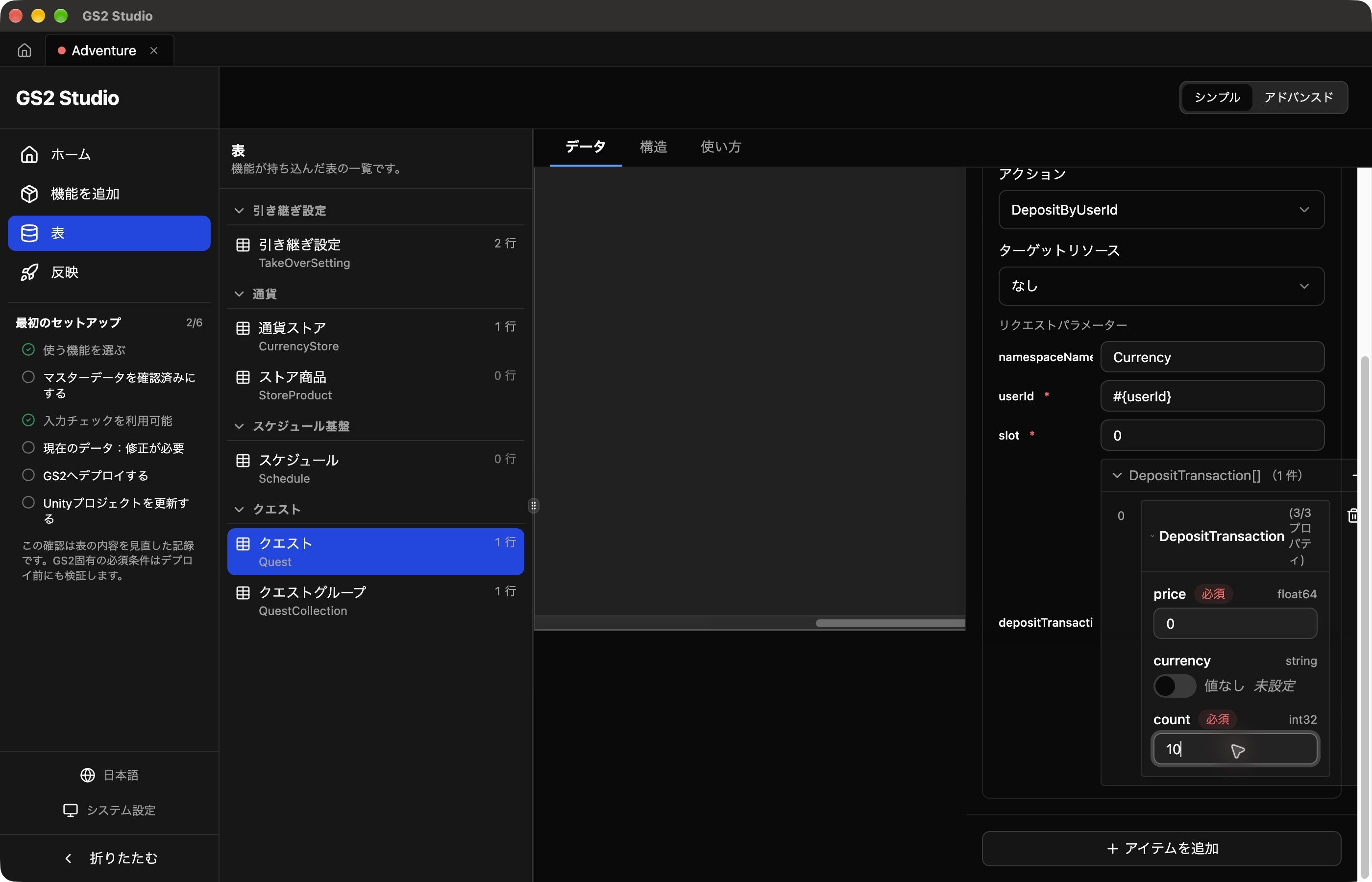 Keep first-clear rewards and failure actions empty. From **Publish**, deploy to GS2 and update the Unity project.
### Connect Start, Complete, and the coin display
Add `ProgressHandler` and `WalletHandler` to the `Gs2` object in Unity. Set Wallet Handler’s **Slot** to `0`. Replace `AdventureStudioView.cs` with this chapter’s version and assign the new handlers to **Progress** and **Wallet**. Keep the existing `QuestListHandler` assigned to **Quests**.
Quest operations are grouped in `DrawQuestButtons()` below. The Start button calls `quest.Start()`, and Complete calls `progress.Binder.Complete()`. `Run()` prevents repeated clicks while an operation is running and displays errors.
Balance and loading-state display are in separate methods. Download the complete script below and replace the existing file.
```csharp
private void DrawQuestButtons()
{
var canOperate = !busy && !unresolved && progress.HasValue;
GUI.enabled = canOperate && !progress.Model.InProgress;
foreach (var quest in quests.Binders)
{
GUILayout.Label(quest.DisplayName);
if (GUILayout.Button("Start: " + quest.DisplayName))
{
Run(() => quest.Start());
}
}
GUI.enabled = canOperate && progress.Model.InProgress;
if (GUILayout.Button("Complete"))
{
Run(() => progress.Binder.Complete());
}
GUI.enabled = true;
}
```
Download AdventureStudioView.cs for this chapter
In your own game, call this completion operation when the player defeats an enemy or reaches the goal. The code above connects it to Complete with `Run(() => progress.Binder.Complete())`. GS2 grants the reward, so you do not need separate code to add coins.
**SDK (Unity)**
### Update the settings
Download the chapter 3 template. Open **Deploy → adventure-game → Update stack** and select it under **Template data**. This complete template includes the previous chapter’s resources. Review and apply the changes, then wait for **Update complete**.
Configure `depositTransactions` in the normal clear rewards to deposit 10 free coins.
```yaml
action: Gs2Money2:DepositByUserId
request: |-
{
"namespaceName": "adventure-coin",
"userId": "#{userId}",
"slot": 0,
"depositTransactions": [
{ "price": 0, "currency": "", "count": 10 }
]
}
```
Pass `request` as a JSON string, written beneath YAML’s `|-` marker.
Start the quest with `StartAsync()` and report a clear with `EndAsync()`. Await `WaitAsync(all: true)` on each returned `transaction` to wait for server processing. Cache change notifications update the progress and balance display.
### Update the Unity code
Put these two files in `Assets`, replacing files with the same names.
- AdventurePlay.cs: quest controls and display
- AdventurePlayer.cs: subscribing to and unsubscribing from display data
Keep the existing `AdventurePlay` component and its **Login** assignment. `AdventurePlayer` is created in code.
### Update the display when data changes
`AdventurePlayer` uses `SubscribeWithInitialCallAsync()` to receive the initial value and later changes. For example, each wallet update replaces the model used to display the coin balance.
```csharp
var balance = Gs2.Money2.Namespace("adventure-coin").Me(Session).Wallet(0);
var subscription = await balance.SubscribeWithInitialCallAsync(value => Wallet = value);
```
The drawing code reads `player.Wallet.Summary.Free`. Progress updates in the same way, so there is no need to reload after starting or completing a quest.
Use the return value to unsubscribe. The downloadable code calls `Unsubscribe()` when Play Mode ends and the object is destroyed.
```csharp
balance.Unsubscribe(subscription);
```
### Start and complete a quest
The buttons call the start and complete operations through `RunWrite()`, which prevents repeated clicks and shows errors. `awaitingResult` records that the request response has arrived, distinguishing later errors from rejection of the request itself.
The relevant part of the script is shown below. You do not need to add this excerpt as another class.
```csharp
private async UniTask BeginQuest(string questName)
{
var transaction = await player.Gs2.Quest.Namespace("adventure-quest").Me(player.Session)
.StartAsync("main", questName, force: false, speculativeExecute: false);
awaitingResult = true;
if (transaction != null) await transaction.WaitAsync(all: true);
}
private async UniTask CompleteQuest()
{
var transaction = await player.Gs2.Quest.Namespace("adventure-quest").Me(player.Session)
.Progress().EndAsync(isComplete: true, speculativeExecute: false);
awaitingResult = true;
if (transaction != null) await transaction.WaitAsync(all: true);
}
```
In your own game, call `CompleteQuest()` when the player defeats an enemy or reaches the goal. The sample’s Complete button calls `RunWrite(CompleteQuest).Forget()`. Use `RunWrite()` when calling from your win condition too, to keep repeated-click prevention and error display. GS2 grants the rewards, so no separate coin-adding code is needed.
Disable Start and Complete while processing. Do not send another copy of the operation before its response arrives. Change the screen on success, and show the reason on error.
## Try a quest
Note the coin balance before starting. After deployment, reward changes can take up to five minutes to take effect. If you still receive the previous amount, wait a little and check with a newly started quest.
| Action | Expected result |
| ---------------------------------- | ------------------------------------------ |
| Start a quest | The active quest is displayed. |
| Complete the quest | The quest ends and the coin balance increases by 10. |
| Start and complete the same quest again | The balance increases by another 10. |
| Try to complete a quest without starting one | No coins are added. |
If the connection drops before the result arrives, display **Unable to confirm the result** without assuming success or failure. Do not immediately resend the clear request.
## Practice: change the settings
Change the clear reward to 15 coins and deploy. Then start a new quest, clear it, and check how many coins were added.
An active quest retains its settings from when it started. Start a new quest to check a changed reward.
## Before moving on
**Restore the normal clear reward to 10 coins and deploy.** With the same account, start and clear Forest exploration again and check that the balance increases by 10.
[Next: Restart and continue playing]()